Wayno's Adventures and sojourns through Linux

  • Home
  • About
  • Contact
  • Email Subscription
  • Facebook Like
  • RSS

11

May

de-smurfing youtube (or why are all the people on youtube blue?)

Posted by Wayno  Published in Browsers, debian, howto, loni, Skill Level: Medium, video

It’s a Blue World. Thanks to this awesome flashplayer bug!

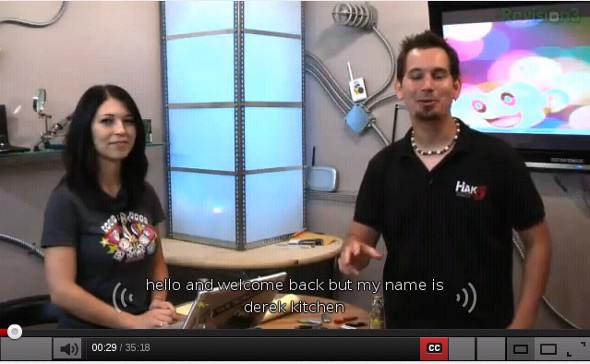
I am running 64 bit Debian Squeeze. And well, when I went to watch an episode of hak5 I had smurf vision!
Darren and Shannon from Hak5 as Smurfs

Darren and Shannon from Hak5.org as Smurfs

Hey guys. I didn’t know you drank too much blueberry juice. Who knew?

Since Adobe WILL NOT fix this (apparently ever, if you look at the bug), the only solution is to revert back to a previous 64 bit flashplayer.

This is what’s currently installed:

ii flashplugin-nonfree 1:2.8.2 Adobe Flash Player – browser plugin

Yes, that’s in the Debian 64 bit multimedia repo.

I had an old version 10 flashplayer laying around. So I used that.

We’ll leave it installed, but we’ll some file fixing, and fix it.

NOTE: THIS IS NOT FOR A N00B. DO NOT TRY THIS IF YOU DON’T KNOW WHAT YOU ARE DOING!

You can get older versions of Flash from here.

1. Change to the directory:


cd /usr/lib/flashplugin-nonfree

2. Create a backup. (Always have a path back to the way it was, before you messed it up!)


sudo mv libflashplayer.so libflashplayer.so.badv11

3. Copy over the old v10.3 flashplayer (64 bit).


sudo cp /home/youruserid/Downloads/libflashplayer.so .

or from where ever it’s located. Yes the period at the end IS significant!

4. Restart your browser.

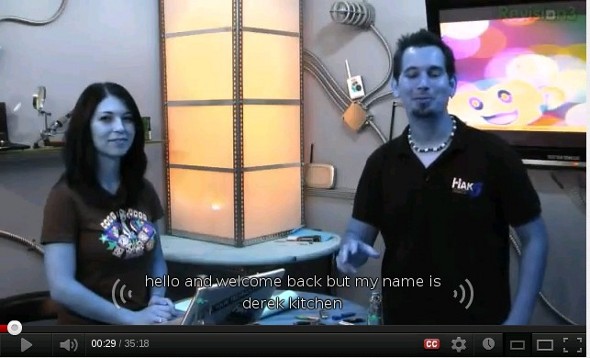
Darren and Shannon magically de-smurfed

Hey guys. Glad to see you’re off the blueberry juice!

Thanks Loni, for the title!

Wayno

1 comment

2

Jan

Getting a Webcam/Logictech Quick Cam to work with Skype in Linux

Posted by Wayno  Published in debian, howto, Misc. other devices/things, Skill Level: Easy, video

Video Chat Cameras are nice. But they don’t always play nicely with the Linux version of Skype.

1. Here’s the camera I have: (here’s now to find out what you have.)


lsusb

and the output will look like:

Bus 005 Device 004: ID 046d:092e Logitech, Inc. QuickCam Chat

2. First step first. Let’s see if the camera works with Linux Cheese.

If not already installed, install cheese:


sudo apt-get install cheese

Cheese is a local loopback programme. It takes the output from the camera (/dev/video0) and loops it right back for you to view.

If successful, this will tell us, that Linux recognizes the camera, and that it works. The light may/may NOT be on.

3. Let’s try the next step: Installing Skype.

Lets get the latest version of Skype from the website.

The latest Linux version (as of this writing) is: 2.2.0.35. (YES, that is far far behind the Windows Version) — Since Microsoft owns Skype, the future of the Linux version is an unknown at this point.

4. Once the download is finished, install Skype:


sudo dpkg -i skype-ubuntu_2.2.0.35-1_i386.deb

They have a version for Debian, and 32 and 64 bits. The example shown above is for the 32 bit Ubuntu version. So make sure you get the right version, and make sure you get the right architecture: 32 or 64 bit.

NOTE: IF YOU ARE ON A 64 BIT DEBIAN SYSTEM, AND PLAN ON USING THE 64 BIT SKYPE, YOU MUST INSTALL THE 32 BIT LIBRARY:

sudo apt-get install ia32-libs

TO GET SKYPE TO WORK ON A 64 BIT DEBIAN SYSTEM. Yeah makes no sense, but you need this if you are running 64 bit DEBIAN Skype.

5. If you do not already have a Skype account, sign up for one. Just follow the prompts. Test the audio by using the Skype Test Call.

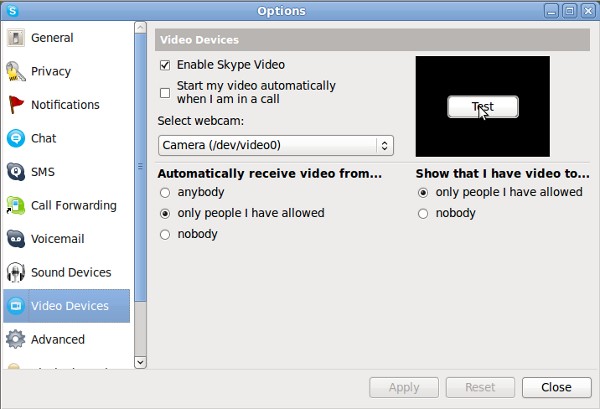
6. Let’s try the video. RIGHT click on the green skype logo in your task bar, then LEFT click on Options/Video Devices.

Now hit the test button. You should hopefully see an image. If you do not, don’t panic!


This article
gave me the information I needed to get it working. But of course, I found a much simpler method then what was given.

7. If you have no video, and this was especially true with the some of the Web Chat Cameras, all you may need to do is to pre-load the needed libraries.

Using your favourite editor (I’ll use nano in this case) create a file called skype.sh in your home directory (cd ~ )


nano skype.sh

enter the following in the file:


#!/bin/bash
#
# script preloads the video for linux (v4l) libs needed by skype
#
LD_PRELOAD=/usr/lib/libv4l/v4l1compat.so /usr/bin/skype

control-o (control plus the “oh” key) to save, and control-x (control plus the “x” key to exit)

note that the library path name /usr/lib/libv4l/ may be different on your machine. This happens the be the correct path for 32 bit Ubuntu 10.04. The LD_Preload loads the Video for Linux Libraries, which Skype needs, but doesn’t get.

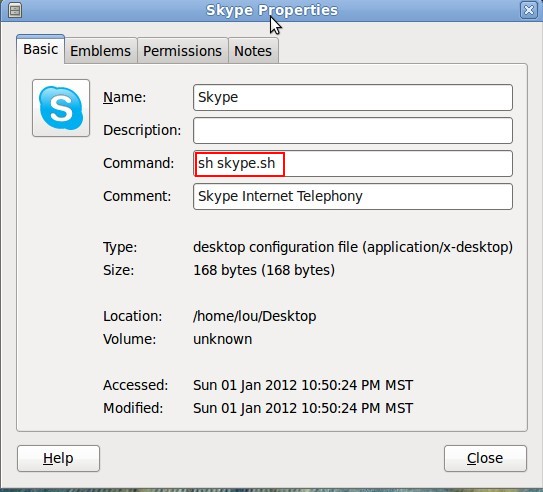
Now change the icon executable location to the script we just created:

Repeat step 6, and the video should now work!

Wayno

3 comments

29

Aug

Ubuntu /etc/X11/xorg.conf from livecd fixes Debian Video Problems

Posted by Wayno  Published in debian, Joe, Skill Level: Easy, video

I have been fighting video problems with Debian for a couple of weeks. I corrected the /etc/X11/xorg.conf file here.

If it looks familiar it should! This is the /etc/X11/xorg.conf file from the 64 bit Ubuntu 10.10 Livecd. I put it onto a usb flash drive, used sneaker net (which means I pulled it out of one machine, walked over, and put it into another), and copied it over. Restarted the gdm3 on 64 bit Debian Squeeze. I have full use of the hardware graphics capability and monitor sizes.

Using Ubuntu to fix Debian. Oh! I so love irony.

Thanks Joe for this crazy idea. But it worked!

Wayno

no comment

21

Aug

How to install the nvidia video driver in Debian

Posted by Wayno  Published in debian, howto, Skill Level: Easy, Skill Level: Medium, video, X11

original post here

Thanks to @jelly-home on #debian for getting me unstuck.

Couple of steps involved. It’s not that hard, but the post above makes it harder then it needs to be.

1. Go into the Synaptic Package Manager (System/Administration/Synaptic Package Manager) and add the Debian Non-Free Software as shown.

Debian Non-Free Software

NOTE: At this point I jump to command line, but the following could be done in Synaptic as well.

2. Install the nvidia Dynamic Kernel Module Support

Note: this assumes sudo works on your debian box, or you will have to su root


sudo apt-get install nvidia-kernel-dkms

Before we reboot, let’s fix X.

3. We need to change xorg.conf, so it loads the proper driver.

As always anything the begins with an octothorpe (#) is a comment and does NOT need to be coded.


cd /etc/X11 # change to the X directory
ls

if there IS an xorg.conf file (I did NOT have one) make a backup copy:


sudo cp xorg.conf xorg.conf.bkup

Now edit or create xorg.conf file:


sudo nano xorg.conf

and the contents need to be:


Section "Screen"
Identifier "Default Screen"
DefaultDepth 24
EndSection

Section "Module"
Load "glx"
EndSection

Section "Device"
Identifier "Default Device"
Driver "nvidia"
Option "NoLogo" "True"
EndSection

Control + o to write, control + x to exit.

NOTE: If this /etc/X11/xorg.conf file looks familiar, it should! This is the same file off of 64 bit Ubuntu 10.10 Livecd. (Ubuntu to fix Debian!)

And then reboot.

4. to confirm the correct driver:


grep -i glx /var/log/Xorg.0.log

and you should get output that looks like:

(II) “glx” will be loaded. This was enabled by default and also specified in the config file.
(II) LoadModule: “glx”
(II) Loading /usr/lib/xorg/modules/extensions/libglx.so
(II) Module glx: vendor=”NVIDIA Corporation”
(II) NVIDIA GLX Module 195.36.31 Thu Jun 3 08:59:25 PDT 2010
(II) Loading extension GLX
(II) Aug 21 14:27:19 NVIDIA(0): Support for GLX with the Damage and Composite X extensions is
(==) Aug 21 14:27:20 NVIDIA(0): Enabling 32-bit ARGB GLX visuals.
(II) Loading extension NV-GLX
(II) Initializing extension GLX

Enjoy video goodness!

Thanks jelly-home

Wayno

no comment

28

Jul

How to convert a dvd video for a Sandisk Sansa Fuse Player using Linux

Posted by Wayno  Published in Audio, debian, howto, Misc. other devices/things, Skill Level: Medium, video

Original post here.

The basic idea of how to convert a video for the Sansa Fuse Mp3/Video player is simple. What’s not so simple is directions.

1. You will need to make sure you Sansa Fuse is set correctly. Set it to MSC Mode.

2. If not installed already, you will need to install k9copy. You can do this simply by:


sudo apt-get install k9copy

Note this is a KDE application, so it may add the required KDE libraries to make this application work, and this may take some time. As Alton Brown says: “Your patience WILL BE rewarded. Your impatience, will be punished!”

3. Follow the directions give in the post above, to install fuzemux, and video4fuze.

4. Now the k9copy part. To change the settings, bring up k9copy, and find “configure k9copy”

Hit the MPEG-4 encoder and select the vido tab:

It should look like this: Encoder: mencoder

Width: 224 Height: 176

and I arbitrarily set the file size to 500 meg.

k9copy mpeg4 encoder options

Video part done!

5. Now to the audio. Select the Audio tab (still under MPEG-4) — codec is mp3 (lame) and bitrate: 128. The gain was preset to 7 (I did NOT change this)

It should look like this:

k9copy mpeg4 audio settings

6. If you have never used k9copy, it can be a bit intimidating. What you want to do, is to OPEN the DVD. All the title sets will be presented: (make sure you check ALL the title sets)

k9copy title set

Set you input/and output as shown in the image above. Your name is going to be different then: “SOUTH_PACIFIC”

7. Hit the COPY button, and then go do you favourite 30 minute activity: walking, biking, television, reading. You know: something other then watching k9copy work!

It will create an output file called .avi in your home directory.

NEXT!

8. While the directions say to start video4fuze on the command line, in reality, that didn’t work for me. Why? Because at least in Ubuntu 10.10 (64 bit), it installs it into /usr/share/video4fuze

And while that’s NOT in-correct, it’s probably NOT in your path either.

Two choices:

either manually navigate to the directory


cd /usr/share/video4fuze

or

create a launcher:

Video 4 Fuze Launcher

You will note, that this is a Python Script.

so to run it: python /usr/share/video4fuze/video4fuze.pyw

And the screen pops up. Select the input file. The output file will be called, /home/username/input_file2_fuze.avi

video 4 fuze setup

You will note, that video4fuze – is really a front end for mencoder.

Again, this is NOT fast. So yea, another 30 minute thing.

10. Plug in your Sansa Fuse to your usb port. My Sansa Fuze has 8 G internally, and a 16G external drive. So I put this on the external drive. Videos will be 300 – 500 meg.

You MIGHT need to create a VIDEOS folder on the Sansa Fuze. (mkdir or nautilus will do this).

11. Copy and Paste time. Simply copy the /home/username/input_file2_fuze.avi file video4fuze created to your mp3 player VIDEOS folder. This will take some time, depending on how fast your ram is. Mine isn’t so, this time a 15 minute break. (Who said any of this was fast?)

12. When it’s done copying:


sync

sync to flush the buffers to disc.

13. Unplug the usb cable, let the fuze refresh, and enjoy!

Wayno

no comment

2

Mar

HDMI connections and Analogue (analog) Closed Captioning

Posted by Wayno  Published in Skill Level: Easy, Uncategorized, video

Nothing to do with Linux!

This information will be useful to those of us that are in the deaf/hard-of-hearing community:

At this link:

Find a DVD Recorder that does Closed Captioning

I learned that Analogue closed captioning is NOT necessarily passed along an HDMI connection. Although analogue captioning seems to function fine with my TIVO HD and an HDMI connection.

I bought this DVD recorder from Wally’s World (aka Walmart)

Magnavox MDR515H

And sure enough. No captioning!

I switched to component output instead of the HDMI cable, and I now have Analogue Closed Captioning goodness! Records and plays back as advertised!

This little tidbit was enough to make all the difference!

and so it goes….

Wayno

no comment

7

Sep

Recording/Capturing your desktop in Ubuntu/Debian

Posted by Wayno  Published in apt-get, gnome, Skill Level: Easy, video

from Darren Kitchen (Hak5.org)

if you do NOT have ffmpeg installed do:


sudo apt-get install ffmpeg

Next:


ffmpeg -f x11grab -s 1024x768 -r 15 -i :0.0 -s 1024x768 -r 15 -sameq video.avi

Thanks Darren!

1 comment

15

Feb

How to Play DVD’S with Totem Movie Player

Posted by Wayno  Published in Audio, DVD, Skill Level: Easy, video

Reposted from here

1. If you did NOT install the “ubuntu-restricted-extras” via synaptic
you may need to do: (at a terminal windows)

sudo apt-get install libdvdread4

if that’s already installed then just proceed to the next step:

2. sudo /usr/share/doc/libdvdread4/install-css.sh

no comment

18

Oct

How to play closed captioned DVD on Linux

Posted by Wayno  Published in DVD, Skill Level: Easy, video

closed captioning != subtitles

at a terminal window type:

mplayer dvd:// -subcc

or

smplayer

then subtitles and check “enable closed captioning”
also make sure you set “subtitle” to none otherwise
you get closed captioning AND subtitles
(best bet)

no comment


May 2012
S M T W T F S
« Apr    
 12345
6789101112
13141516171819
20212223242526
2728293031  

Recent Posts

  • de-smurfing youtube (or why are all the people on youtube blue?)
  • Monzy kill -9 (Nerdcore)
  • Finding and installing 64 bit Firefox and Thunderbird for Debian
  • Allowing more then one user to start an X session (pam authentication)
  • First Look: Ubuntu 12.04 lts

Categories

  • Android
  • apt-get
  • Audio
  • backup
  • bash
  • Browsers
  • Compiling Source Code
  • crontab
  • debian
  • debugging
  • Deposit @ Home
  • DNS – Domain Name System
  • DVD
  • filesharing
  • fstab
  • ftp
  • gnome
  • grub
  • howto
  • Humour
  • Internet Connection Sharing
  • java
  • Joe
  • Linux Networking
  • loni
  • Misc. other devices/things
  • Music
  • Natty
  • netbook
  • Printers/Printing
  • rsync
  • samba
  • Security
  • Skill Level: Advanced
  • Skill Level: Easy
  • Skill Level: Medium
  • sound
  • ssh
  • Thunderbird
  • Uncategorized
  • ups
  • video
  • wireless
  • word processors
  • X11

Archives

  • May 2012
  • April 2012
  • March 2012
  • February 2012
  • January 2012
  • December 2011
  • November 2011
  • October 2011
  • September 2011
  • August 2011
  • July 2011
  • June 2011
  • May 2011
  • April 2011
  • March 2011
  • February 2011
  • January 2011
  • December 2010
  • November 2010
  • September 2010
  • July 2010
  • April 2010
  • March 2010
  • February 2010
  • January 2010
  • December 2009
  • October 2009
  • September 2009
  • July 2009
  • June 2009
  • May 2009
  • April 2009
  • March 2009
  • February 2009

Blogroll

  • Hak5 – Trust your Technolust
  • Scott Linux – A place to geek out
  • Tucson Computer Society

Meta

  • Register
  • Log in
  • Entries RSS
  • Comments RSS
  • WordPress.org

Recent Posts

  • de-smurfing youtube (or why are all the people on youtube blue?)
  • Monzy kill -9 (Nerdcore)
  • Finding and installing 64 bit Firefox and Thunderbird for Debian
  • Allowing more then one user to start an X session (pam authentication)
  • First Look: Ubuntu 12.04 lts
  • Gnome classic (fallback) in Ubuntu 12.04
  • Cat listening to Music
  • How to send broadcast messages to all users in Windows or Linux
  • Cox Communications “quality challenged” internet connection (of Cats and Cox)
  • Why RTFM is important

Recent Comments

  • Shannon in de-smurfing youtube (or why are all the people on …
  • Juan Pedro Sanchez in Getting a Webcam/Logictech Quick Cam to work with …
  • Khorshed Alam in Mounting an iso9660 iso file in Linux (ubuntu/debi…
  • ActionParsnip in Installing gnome-3 on Ubuntu 10.10/10.04
  • Wayno in Cox Communications "quality challenged" internet c…
  • sandeep in How to mount a usb or micro sd card, when Linux do…
  • Wayno in How to mount a usb or micro sd card, when Linux do…
  • sandeep in How to mount a usb or micro sd card, when Linux do…
  • mahesh in How to install Java 1.7 for Ubuntu/Debian (apt-get…
  • Wayno in Why RTFM is important
© 2007 Wayno's Adventures and sojourns through Linux


Theme by WebRehash | Free WordPress Templates | Valid XHTML | Valid CSS 3.0 | Powered by Wordpress