Wayno's Adventures and sojourns through Linux

  • Home
  • About
  • Contact
  • Email Subscription
  • Facebook Like
  • RSS

9

Feb

How to file check a Windows or Dos File System using Linux

Posted by Wayno  Published in debian, howto, Misc. other devices/things, Skill Level: Easy

It’s much much easier then I thought!

You need to use dosfsck!

1. If not already installed, install dosfsck: (it’s in sbin)


sudo apt-get install dosfsck

2. Find your device name.


sudo blkid

You will get output that looks like:

/dev/sdf1: LABEL=”CANON_DC” UUID=”713B-5AE2″ TYPE=”vfat”

Your device name will PROBABLY be different.

3. Check the usb drive or sd card:

Remember that the device should NOT be mounted, and that it needs to run as root (sudo or su -)


sudo dosfsck -av /dev/sdf1

-a says to automatically repair.

-v says to use verbose output.

You will get output that looks like:

dosfsck 3.0.9 (31 Jan 2010)
dosfsck 3.0.9, 31 Jan 2010, FAT32, LFN
Checking we can access the last sector of the filesystem
Boot sector contents:
System ID “PwrShot ”
Media byte 0xf8 (hard disk)
512 bytes per logical sector
32768 bytes per cluster
6304 reserved sectors
First FAT starts at byte 3227648 (sector 6304)
2 FATs, 32 bit entries
483328 bytes per FAT (= 944 sectors)
Root directory start at cluster 2 (arbitrary size)
Data area starts at byte 4194304 (sector 8192)
120752 data clusters (3956801536 bytes)
63 sectors/track, 128 heads
8192 hidden sectors
7736320 sectors total
Reclaiming unconnected clusters.
Checking free cluster summary.
/dev/sdf1: 693 files, 29358/120752 clusters

No errors. Good to go. Look Ma! No Windows!

Wayno

1 comment

1

Feb

Getting the subsonic server to work in Linux with a Roku media player

Posted by Wayno  Published in Audio, debian, howto, Music, Skill Level: Medium, sound

Yeah this required 3 hours of futzing to figure out.

1. Once you have the Subsonic Server installed, turn it off.


sudo service subsonic stop

2. Next change to the /var directory.

Remember anything with an octothorpe (#) is a comment and NEED not be coded.


cd /var # change to the /var
sudo mv subsonic subsonic.old # renames the existing folder
sudo service subsonic start # restart the subsonic server

3. Now we have to create a symbolic link for the lame transcoder, even if it is already installed.

To verify if lame is installed:


dpkg -l | grep lame

You would get output that looks like:

nwayno@Homer:~$ dpkg -l | grep lame
ii lame 3.98.4-0ubuntu1 An MP3 encoding library (frontend)
ii libmp3lame0 3.98.4-0ubuntu1 An MP3 encoding library
ii libtwolame0 0.3.12-1 MPEG Audio Layer 2 encoding library
ii twolame 0.3.12-1 MPEG Audio Layer 2 encoder (command line frontend)
nwayno@Homer:~$

If lame is NOT installed (the dpkg just returns a prompt) — install the lame decoder:


sudo apt-get install lame

as you can see, mine WAS installed.

4. Go back to localhost:4040 and re-enter all the information. If it complains that lame is not installed in the transcode directory, simply create a symbolic link.


which lame

should return:

/usr/bin/lame

5. so off we go again!


sudo service subsonic stop # stop the subsonic server
cd /var/subsonic/transcode # change back to the transcode dir
sudo ln -s /usr/bin/lame # create the symlink
sudo service subsonic start # start up the server so it gets change

it will just return a prompt.

to confirm the symbolic link is there:


ls -l

and you should get output that looks like:

lrwxrwxrwx 1 root root 13 2012-02-01 15:10 lame -> /usr/bin/lame

which tells us that /usr/bin/lame is properly symlinked.

6. Now you can proceed to the Roku Box, and configure Subsonic TV.

Please note that subsonictv for Roku is not free. It is currently $5 USD plus applicable taxes.

The configuration will now save correctly on the Roku set top box, because it can now find the lame mp3 decoder.

Tested with Ubuntu 10.10 (64 bit), and Roku Model 2100X (hardwired)

Wayno

no comment

2

Jan

Getting a Webcam/Logictech Quick Cam to work with Skype in Linux

Posted by Wayno  Published in debian, howto, Misc. other devices/things, Skill Level: Easy, video

Video Chat Cameras are nice. But they don’t always play nicely with the Linux version of Skype.

1. Here’s the camera I have: (here’s now to find out what you have.)


lsusb

and the output will look like:

Bus 005 Device 004: ID 046d:092e Logitech, Inc. QuickCam Chat

2. First step first. Let’s see if the camera works with Linux Cheese.

If not already installed, install cheese:


sudo apt-get install cheese

Cheese is a local loopback programme. It takes the output from the camera (/dev/video0) and loops it right back for you to view.

If successful, this will tell us, that Linux recognizes the camera, and that it works. The light may/may NOT be on.

3. Let’s try the next step: Installing Skype.

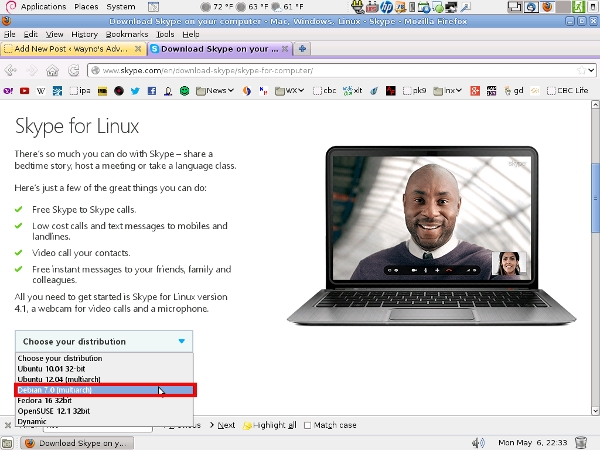
Lets get the latest version of Skype from the website.

The latest Linux version (as of this writing) is: 2.2.0.35. (YES, that is far far behind the Windows Version) — Since Microsoft owns Skype, the future of the Linux version is an unknown at this point.

4. Once the download is finished, install Skype:


sudo dpkg -i skype-ubuntu_2.2.0.35-1_i386.deb

They have a version for Debian, and 32 and 64 bits. The example shown above is for the 32 bit Ubuntu version. So make sure you get the right version, and make sure you get the right architecture: 32 or 64 bit.

NOTE: IF YOU ARE ON A 64 BIT DEBIAN SYSTEM, AND PLAN ON USING THE 64 BIT SKYPE, YOU MUST INSTALL THE 32 BIT LIBRARY:

sudo apt-get install ia32-libs

TO GET SKYPE TO WORK ON A 64 BIT DEBIAN SYSTEM. Yeah makes no sense, but you need this if you are running 64 bit DEBIAN Skype.

5. If you do not already have a Skype account, sign up for one. Just follow the prompts. Test the audio by using the Skype Test Call.

6. Let’s try the video. RIGHT click on the green skype logo in your task bar, then LEFT click on Options/Video Devices.

Now hit the test button. You should hopefully see an image. If you do not, don’t panic!


This article
gave me the information I needed to get it working. But of course, I found a much simpler method then what was given.

7. If you have no video, and this was especially true with the some of the Web Chat Cameras, all you may need to do is to pre-load the needed libraries.

Using your favourite editor (I’ll use nano in this case) create a file called skype.sh in your home directory (cd ~ )


nano skype.sh

enter the following in the file:


#!/bin/bash
#
# script preloads the video for linux (v4l) libs needed by skype
#
LD_PRELOAD=/usr/lib/libv4l/v4l1compat.so /usr/bin/skype

control-o (control plus the “oh” key) to save, and control-x (control plus the “x” key to exit)

note that the library path name /usr/lib/libv4l/ may be different on your machine. This happens the be the correct path for 32 bit Ubuntu 10.04. The LD_Preload loads the Video for Linux Libraries, which Skype needs, but doesn’t get.

Now change the icon executable location to the script we just created:

Repeat step 6, and the video should now work!

Wayno

2 comments

12

Dec

How to add a network printer in Debian/Ubuntu Linux

Posted by Wayno  Published in debian, howto, Linux Networking, Printers/Printing, Skill Level: Easy

This is actually fairly easy, but there are a couple of tricks!

1. What is the IP address of that printer?

The easy way is to scan for it!

If you have not done so, install the arp-scan programme. Arp (Address Resolution Protocol) This will allow us to scan the network for all devices on the network.


sudo apt-get install arp-scan

2. Run arp-scan to see what’s on your network:


sudo arp-scan --interface=eth0 --localnet

arp-scan MUST be run as root, so that’s why we do the sudo.
We are limiting the search for anything we can reach, via our local ethernet connection.

You will get output that looks like:

$ sudo arp-scan –interface=eth0 –localnet
Interface: eth0, datalink type: EN10MB (Ethernet)
Starting arp-scan 1.6 with 256 hosts (http://www.nta-monitor.com/tools/arp-scan/)
192.168.1.1 00:12:34:56:78:81 (Unknown)
192.168.1.100 00:34:56:78:9a:5d Hewlett Packard
192.168.1.104 00:46:cd:ef:49:b1 (Unknown)
192.168.1.105 00:aa:bd:cb:d7:aa Roku, LLC

4 packets received by filter, 0 packets dropped by kernel
Ending arp-scan 1.6: 256 hosts scanned in 1.421 seconds (180.15 hosts/sec). 4 responded
$

Hmm. There’s something that says Hewlett Packard. Yup that’s my printer at address: 192.168.1.100

5. Go into: System/Administration/Printing and add your printer, if it is NOT already present. And follow the prompts for adding a printer. Almost done, couple of other chores.

6. Now click on Server and then Settings, and your screen should look like:

7. One last step. Enable the printer, and enable it for sharing. Also you may/may not want to set it as the default printer. Single right click on the printer icon, and select/check Enabled/Sharing:

8. Repeat these steps on each computer that you want to add this network printer too.

Wayno

no comment

8

Dec

Ubuntu 12.04 LTS Won’t Fit On a CD

Posted by Wayno  Published in debian, Skill Level: Easy

Ubuntu 12.04 LTS Won’t Fit On a CD

Thanks guys! NOT!

Alternatives? Plenty.

1. Linux Mint (good for n00bs)

2. Debian (for experienced users)

Wayno

no comment

22

Nov

How to label an ms dos Flash Drive or Micro SD card using mtools in Linux

Posted by Wayno  Published in debian, howto, Misc. other devices/things, Skill Level: Easy, Skill Level: Medium

The information on how to label an ms-dos formatted drive seems scattered across the internet, and might seem overwhelming at first. But it’s not too hard. Here’s my recipe!

1. If not already installed, install the mtools package. This is an open source package for manipulating ms-dos file systems, under Linux.

to do that simply install the package:


sudo apt-get install mtools

We’re half way there!

2. Let’s insert that flash drive, thumb drive, micro sd card or whatever it’s called.

3. Most systems should auto-mount the drive. If not, view this article, on how to mount a usb or micro-sd card.

4. We’ll use


sudo blkid

to get the device id!

$ sudo blkid
[sudo] password for :

/dev/sde1: LABEL=”" UUID=”1B44-206B” TYPE=”vfat”

That’s the guy I want! sde1! Your device WILL probably have a different device name.

5. Let’s fix /etc/mtools.conf first.

using your favourite editor (nano in my case) let’s change mtools.

as always the # (octothorpe) is a comment and need NOT be coded.


cd /etc # change to the /etc directory
sudo cp mtools.conf mtools.conf.org # make a backup of the current file
sudo nano mtools.conf # edit the mtools.conf file

add a line at the bottom which reads:


drive p: file="/dev/sde1"

control+O (OH) to write, and then control x to exit. Again, your device name, might be different.

do a

cd ~ # change back to my home directory

to get back to your home directory, after editing /etc/mtools.conf.

6. So now I try to label the drive, p: but I get:

nwayno@Homer:~$ sudo mlabel p:WAYNOFLSH
Total number of sectors (1957888) not a multiple of sectors per track (62)!
Add mtools_skip_check=1 to your .mtoolsrc file to skip this test

Oh-oh! It turns out the it tells you how to fix the problem right there, but it may not be obvious. (All this to label an ms-dos drive under Linux? YES, unfortunately!)

Using your favourite editor, create .mtoolsrc (yes the period at the beginning is important!)
and add the line:

mtools_skip_check=1

to the file. Save and exit. Again, all this is not hard, it’s just a pain.

7. Let’s try again!

$ sudo mlabel p:WAYNOBKFLSH
$ df -h
Filesystem Size Used Avail Use% Mounted on

/dev/sde1 955M 203M 752M 22% /media/WAYNOBKFLSH

8. Flush the buffers with sync


sync

Mission accomplished!

Look Ma, I didn’t have to use Windows, after all!

Wayno

no comment

14

Nov

Linux Mint: The new Ubuntu?

Posted by Wayno  Published in debian, Skill Level: Easy, Uncategorized

This is a very relevant article to the Ubuntu and Unity debate, vs other Linux distributions, especially, Linux Mint.

Linux Mint: The new Ubuntu?

Personally, I am on Debian Squeeze. Very solid, but NOT for n00bs. Tad difficult to configure.

Wayno

no comment

23

Oct

how to use nautilus as an ftp client

Posted by Wayno  Published in debian, filesharing, ftp, gnome, howto, Skill Level: Easy

Heh. This was a new trick on me. I did not know you could use Nautilus as an ftp client. Here’s how to do it.

1. Open nautilus, then File/Connect to server.

nautilus as an ftp client

2. Fill in the information, hit connect and you are good to go!

Wayno

no comment

27

Sep

How to mount a usb or micro sd card, when Linux does not automount

Posted by Wayno  Published in bash, debian, howto, Misc. other devices/things, Skill Level: Easy

This is something I am asked by n00bs a lot. My Linux system doesn’t automount my USB or micro sd card / camera card, what do I do now?

(NOTE: You can usually tell an automounted device because it will have a mount point of

/media/volumelabel

First of all, like Douglas Adams said: Don’t panic!

The first thing you want to do, is to find out if Linux can first see the device? How? Easy.

1. The first thing we want to do, is see if Linux see’s the device? How? Easy! lsusb


lsusb

Sample lsusb output

nwayno@Homer:~$ lsusb
Bus 002 Device 003: ID 03f0:4211 Hewlett-Packard OfficeJet 7300 series
Bus 002 Device 002: ID 051d:0002 American Power Conversion Uninterruptible Power Supply
Bus 002 Device 001: ID 1d6b:0001 Linux Foundation 1.1 root hub
Bus 001 Device 010: ID 0951:1603 Kingston Technology DataTraveler 1GB/2GB Pen Drive
Bus 001 Device 006: ID 0488:0022 Cirque Corp.
Bus 001 Device 004: ID 0bc2:3000 Seagate RSS LLC
Bus 001 Device 002: ID 0409:005a NEC Corp. HighSpeed Hub
Bus 001 Device 001: ID 1d6b:0002 Linux Foundation 2.0 root hub

and sure enough the device I am looking for is present:

Bus 001 Device 010: ID 0951:1603 Kingston Technology DataTraveler 1GB/2GB Pen Drive

It is NOT mounted, but I know that Linux can see it.

2. The second step is to determine what the device is called. How do you do that? blkid. blkid will list all the block devices attached to a system. NOT necessarily mounted. We want ALL devices, so we do that as root. Be patient! This can take a couple of minutes (Your patience will be rewarded.)


sudo blkid

Sample blkid output

nwayno@Homer:~$ sudo blkid
[sudo] password for nwayno:
/dev/sda1: LABEL=”Homer699″ UUID=”12345AB567″ TYPE=”ntfs”
/dev/sda2: UUID=”4dac-408816aecd1e” TYPE=”swap”
/dev/sda3: LABEL=”homer” UUID=”4e75-985fd59115e4″ TYPE=”ext4″
/dev/sda4: LABEL=”waynohome” UUID=”bc4-4c34-9d7d-3f5a56d13″ TYPE=”ext4″
/dev/sdb1: LABEL=”BFDNTFS” UUID=”FC1687414″ TYPE=”ntfs”
/dev/sdb2: LABEL=”bfdlinux” UUID=”143-4c0-4db-a392-55fb94a0f” TYPE=”ext4″
/dev/sdd1: UUID=”7E-4CEC” TYPE=”vfat”
/dev/sdd2: UUID=”42062a-9f99-a4ec71894″ TYPE=”ext4″
nwayno@Homer:~$

Notice that all the devices on my system were listed. Both mounted and umounted.

So the guy I am looking for is /dev/sdd1

YOUR DEVICE MAY BE A DIFFERENT NAME.. Remember the device is STILL not mounted at this point.

We know that /dev/sdd1 is vfat which is pretty typical of micro-sd cards. They are almost always vftat.

3. We have a couple of choices on mounting the device. We can use the a system mount point /mnt or create one with mkdir. I’ll only show the mount with the system mount point, but it could easily be anything that you create. Remember that to Linux, a device is just a mount point.

4. So become root, and mount the device:


sudo mount -t vfat /dev/sdd1 /mnt

YOUR DEVICE MAY BE A DIFFERENT NAME.

Remember, only root can mount/unmount (umount) devices.

The -t tells us that the device is vfat (windows). We got that from the blkid command. If it’s not vfat, the output of blkid well tell us what the file structure is. Use man mount for more information.

/dev/sdd1 was also obtained from the blkid information, tells us to associate this device with the mount point that follows: /mnt.

5. To access you files, launch your file browser (I use nautilus and just navigate (Filesystem/mnt directory) or just do a a cd to the /mnt directory:

/mnt directory

And the contents of /mnt are:

contents of /mnt


cd /mnt

6. List the files:


ls

and you should get some output:

A6VWN4.pdf
aztcs.htm
budgeting
discovery
FNPACK
ubuntu_11.04.png
ubuntu_11.04_unity.png
unity_11_04.png
vsftpd.conf_25K

7. And how much space do you have left on that device?


df -h

the df command displays used and free space on the device:

Sample df -h output

nwayno@Homer:~$ df -h
Filesystem Size Used Avail Use% Mounted on
/dev/sda3 50G 23G 25G 48% /
none 934M 268K 933M 1% /dev
none 940M 1.5M 939M 1% /dev/shm
none 940M 344K 940M 1% /var/run
none 940M 4.0K 940M 1% /var/lock
/dev/sda4 834G 306G 486G 39% /home
/dev/sdb2 773G 397G 337G 55% /media/bfdlinux
/dev/sdb1 147G 90G 58G 61% /media/BFDNTFS
/dev/sdd1 975M 847M 128M 87% /mnt
nwayno@Homer:~$

YOUR DEVICE MAY BE A DIFFERENT NAME.

In my case I have used 847M, and have 128M free on a 975M device (/dev/sdd1 above or /mnt)

8. All done? Umount the device, and sync the output.


umount /dev/sdd1

YOUR DEVICE MAY BE A DIFFERENT NAME.


sync

sync flushes the buffers, writes any pending data to the drive, and avoids data loss!

Easy! Painless!

Wayno

1 comment

16

Sep

What folder do you use to add music to a Samsung Restore?

Posted by Wayno  Published in Audio, debian, howto, Misc. other devices/things, Music, Skill Level: Easy, sound

No place on the internet, have I found the location to add your own music, to a Samsung Restore Cell Phone. Till now. While this is Linux oriented, the same location would be used in Windows.

It goes into the Downloads folder. (Yes. Spelled “Downloads” with a capital D!)

1. Copy your music from your source, to this folder. Yes you can have embedded folders. Mine is called: “The Moody Blues”

You can use nautilus to create the folder, or mkdir from the command line. In Windows, you would use the File Manager.

Virgin Mobile Music Folder

Virgin Mobile Music Folder Location


You will notice that my microsd is labelled WAYNOSVMFON. You can do this with gparted. Note that the microsd is formatted as vfat. Debian has some issues auto-mounting vfat partitions, so you may need to manually mount it.


sudo mount /dev/sdxx /mnt

where xx is the device name (hint: use sudo blkid to get that)

You will notice that when you use the media player, that a file in (yup, remember this is windows) is created called:

Virgin Mobile Music Key File

Virgin Mobile Music Key File

SamsungMusic_key.txt

The file seems to contain some random 4 digit number.

You may also notice a folder called “music” That’s NOT where you put the music. BUT, you will find the file: playlist.mdb Yup, that’s a Microsoft Database file.

Oops! Added an SONG you no longer want? Want to make it disappear? Sort of easy. This is how you do it from the phone itself.

1. Select the LEFT Menu button.

2. Go to Tools and Settings.

3. Select Tools.

4. Mass Storage.

5. File Manager.

6. Memory Card

7. Downloads folder.

8. Open the Folder that your music is in, then the sub-folder within that contains the song you to delete, and finally the song. Nope it will NOT let you just delete the folder, if it contains files. You must delete the contents of the folder, one at a time.

9. Options Button (right button)

10. Delete

Enjoy your music!

Wayno

no comment
Next Page »

Search

About

PKILL-9

Categories

  • Android (1)
  • apt-get (5)
  • Audio (10)
  • backup (3)
  • bash (9)
  • Browsers (8)
  • Compiling Source Code (3)
  • crontab (1)
  • debian (23)
  • debugging (1)
  • Deposit @ Home (1)
  • DNS – Domain Name System (2)
  • DVD (6)
  • filesharing (5)
  • fstab (2)
  • ftp (2)
  • gnome (15)
  • grub (1)
  • howto (23)
  • Humour (5)
  • Internet Connection Sharing (1)
  • java (3)
  • Joe (23)
  • Linux Networking (8)
  • loni (16)
  • Misc. other devices/things (12)
  • Music (9)
  • Natty (3)
  • netbook (4)
  • Printers/Printing (2)
  • rsync (1)
  • samba (2)
  • Security (3)
  • Skill Level: Advanced (16)
  • Skill Level: Easy (85)
  • Skill Level: Medium (39)
  • sound (8)
  • ssh (3)
  • Thunderbird (3)
  • Uncategorized (40)
  • ups (2)
  • video (8)
  • wireless (3)
  • word processors (3)
  • X11 (4)

Archives

  • February 2012 (2)
  • January 2012 (3)
  • December 2011 (2)
  • November 2011 (6)
  • October 2011 (5)
  • September 2011 (2)
  • August 2011 (8)
  • July 2011 (11)
  • June 2011 (8)
  • May 2011 (11)
  • April 2011 (9)
  • March 2011 (9)
  • February 2011 (10)
  • January 2011 (4)
  • December 2010 (3)
  • November 2010 (3)
  • September 2010 (1)
  • July 2010 (7)
  • April 2010 (4)
  • March 2010 (3)
  • February 2010 (5)
  • January 2010 (1)
  • December 2009 (1)
  • October 2009 (4)
  • September 2009 (1)
  • July 2009 (1)
  • June 2009 (2)
  • May 2009 (5)
  • April 2009 (5)
  • March 2009 (3)
  • February 2009 (6)

Blogroll

  • Documentation
  • Plugins
  • Suggest Ideas
  • Support Forum
  • Themes
  • WordPress Blog
  • WordPress Planet

Pages

  • About
  • Contact
  • RSS
  • Email Subscription
  • Facebook Like

Meta

  • Register
  • Log in
  • RSS Entries
  • Comments Rss
February 2012
S M T W T F S
« Jan    
 1234
567891011
12131415161718
19202122232425
26272829  

Recent Posts

  • How to file check a Windows or Dos File System using Linux
  • Getting the subsonic server to work in Linux with a Roku media player
  • test2
  • How to generate an easy to remember password
  • Getting a Webcam/Logictech Quick Cam to work with Skype in Linux
  • How to add a network printer in Debian/Ubuntu Linux
  • Ubuntu 12.04 LTS Won’t Fit On a CD
  • 25 worst passwords — how to change your password in Linux
  • How to label an ms dos Flash Drive or Micro SD card using mtools in Linux
  • Linux Mint: The new Ubuntu?

Recent Comments

  • tmoody in How to install Java 1.7 for Ubuntu/Debian (apt-get…
  • Jake in How to file check a Windows or Dos File System usi…
  • anakabas in Getting a Webcam/Logictech Quick Cam to work with …
  • joeSchmoe in How to install Java 1.7 for Ubuntu/Debian (apt-get…
  • Dynamic Designz – Anonymous P… in Making Ubuntu/Debian Linux do it's own DNS (Domain…
  • jake in Getting a Webcam/Logictech Quick Cam to work with …
  • Wayno in How to avoid bricking a Tracfone. What is the dif…
  • lynncancersurvivor in How to avoid bricking a Tracfone. What is the dif…
  • Jose in 25 worst passwords -- how to change your password …
  • How to label an ms-dos Flash Drive … in How to mount a usb or micro sd card, when Linux do…
© 2007 Wayno's Adventures and sojourns through Linux


Theme by WebRehash | Free WordPress Templates | Valid XHTML | Valid CSS 3.0 | Powered by Wordpress