Wayno's Adventures and sojourns through Linux

  • Home
  • About
  • Contact
  • Email Subscription
  • Facebook Like
  • RSS

14

Jan

How to generate an easy to remember password

Posted by Wayno  Published in howto, Joe, Security, Skill Level: Easy

Need a strong, but easy to remember password? No need to remember, generate it! Up to 48 chars, works on any unix-like system:


read -s pass; echo $pass | md5sum | base64 | cut -c -16

Joe -

========================================

MD5SUM creates a 128 bit hash.

Base64 turns a binary number into ASCII

cut – simply removes sections for each line.

Output looks like:

n@H:~$ read -s pass; echo $pass | md5sum | base64 | cut -c -16
(I entered: abcdefg)
MDIwODYxYzhjM2Zl

no comment

29

Aug

Ubuntu /etc/X11/xorg.conf from livecd fixes Debian Video Problems

Posted by Wayno  Published in debian, Joe, Skill Level: Easy, video

I have been fighting video problems with Debian for a couple of weeks. I corrected the /etc/X11/xorg.conf file here.

If it looks familiar it should! This is the /etc/X11/xorg.conf file from the 64 bit Ubuntu 10.10 Livecd. I put it onto a usb flash drive, used sneaker net (which means I pulled it out of one machine, walked over, and put it into another), and copied it over. Restarted the gdm3 on 64 bit Debian Squeeze. I have full use of the hardware graphics capability and monitor sizes.

Using Ubuntu to fix Debian. Oh! I so love irony.

Thanks Joe for this crazy idea. But it worked!

Wayno

no comment

25

Aug

Debian DVD with missing device drivers and non-free software installed

Posted by Wayno  Published in debian, DVD, Joe, Misc. other devices/things, Skill Level: Easy, wireless

Let’s face it. Debian != Ubuntu. It can be difficult to configure. But this DVD may help!

Debian DVD

BOTH 32 and 64 BIT SYSTEMS on the DVD (under $5)

The main advantages to this DVD over this free ones you can at the Debian Site are:

1. Comes with the non-free software already on the dvd.

2. Comes with drivers you’d have to hunt up, like the atheros wireless driver.

Order it here

Thanks Joe!

Wayno

no comment

11

Aug

A mini guide on converting from Ubuntu to Debian

Posted by Wayno  Published in bash, Browsers, debian, gnome, howto, java, Joe, loni, Skill Level: Advanced, X11

How to convert from Ubuntu to Debian

This article will encompass a LOT of previous posts. This is NOT recommended for n00bs.

1. While you are downloading the Debian iso, it would be a good first step to backup /home/ and /etc/.

2. You can find simple rsync backup/restore scripts here.

3. Once the debian iso is downloaded, you should md5sum check it first. You can find the debian cd iso image checksums here.

4. Burn the iso (not copy to a cd – why this is NOT for n00bs) to a cd or dvd, depending on what you downloaded.

5. Installing from the DVD is quite different then Ubuntu. This is NOT a live cd, so you can’t experiment first.

The rest of this article will ass/u/me that you were able to install Debian sucessfully. Configuring Debian, requires some work!

1. The first thing that bit me in the buttocks (can we say that here?) – is rebranded software. You won’t find Firefox or Thunderbird. Instead you will find re-branded software. So icedove instead of Thunderbird, and IceWeasel instead of Firefox. Those are in the Debian Repositories. The problem with re-branded software, is that it is NOT upstream compatible. You can always choose to install the branded stuff (Firefox/Thunderbird) from the Mozilla site.

NOTE: the following code block assumes sudo (#3 below is fixed:)

As always anything with an octothorpe (#) is a comment and need not be coded.


sudo apt-get install icedove # get the re-branded thunderbird
sudo apt-get install iceweasel # get the re-branded firefox

2. The second thing is .profile so you will want to deal with that next.

3. Next, was how to easily do sudo in debian

By default – sudo does NOT work in Debian. And as you know, you get sort of used to using sudo in Ubuntu. There are some crazy ideas on how to fix this, but this is pretty easy and straight forward.

4. You probably need java run time

Guess what? That does NOT come pre-installed on Debian! You can easily add the java runtime environment (jre) for Debian.

5. if you need to restart the gdm in Debian, it’s gdm3 NOT gdm as in Ubuntu. So


sudo service gdm3 restart

6. By default, /usr/sbin is NOT in your path in Debian, but is in Ubuntu. How to fix? This was a little more complicated then I thought. But Joe had a neat fix! (so none of the system tasks are available – things like I dunno gparted, vsftpd, useradd, etc — are not accessible.)

By default, when Linux comes up, it executes /etc/profile. Within /etc/profile it sources /etc/profile.d/bashrc.local.sh

What do I mean by “sources?” Joe explains:

Executing a script is the normal way to do it. The script executes, then it exits, and it’s environment is gone forever.

When you source a script, you execute all the commands in the script and (it) remain(s) in the environment – keeping all changes made to same.

execute: /path/to/script.sh

source: source /path/to/script or more succinctly:

. /path/to/script

And that is what the following script does/ It uses a function called pathmunge to add the missing paths:


# /etc/bashrc.local.sh for Linux
#
# Local environment variables
#
export ORGANIZATION="Mirai Consulting"

#if [ $SHELL == '/bin/bash' ]; then

#
# Set prompt and aliases to something useful for an interactive shell
#

case "$-" in
*i*)
#
# Set prompt to something useful
#
case "$is" in
bash)
set -p
if test "$UID" = 0 ; then
PS1="u@h:w> "
else
tty=`tty`
PS1=`uname -n`': $PWD n(tty${tty#/dev/tty}): bash: ! > '
fi
;;
esac

case $TERM in
xterm)
PROMPT_COMMAND='echo -ne "33]0;${USER}@${HOSTNAME%%.*}:${PWD/$HOME/~}07"'
;;
screen)
PROMPT_COMMAND='echo -ne "33_${USER}@${HOSTNAME%%.*}:${PWD/$HOME/~}33\"'
;;
*)
PROMPT_COMMAND=''
;;
esac

# fix broken non-root path -

pathmunge () {
if ! echo $PATH | /bin/egrep -q "(^|:)$1($|:)" ; then
if [ "$2" = "after" ] ; then
PATH=$PATH:$1
else
PATH=$1:$PATH
fi
fi
}

#
# Path manipulation
#

pathmunge /sbin
pathmunge /usr/sbin
pathmunge /usr/local/sbin
pathmunge $HOME/sbin

unset pathmunge

set histexpand
export HISTCONTROL=ignoredups

alias ltr='ls -latr'
alias ll='ls -laFL'
alias lll='ll | less'

alias cls=clear
alias f=finger

sudo=''

alias maillog='$sudo tail -20 /var/log/mail.log'
alias postlog='$sudo grep postfix /var/log/mail | tail -40'
alias poplog='$sudo grep pop3-login /var/log/mail | tail -40'
alias msgs='$sudo tail -20 /var/log/messages'
alias krnl='$sudo tail -20 /var/log/kernel'
alias cmo='ls -Lltr /var/spool/mail'
alias psu='ps -FHu'
alias mqt='mailq|tail'
alias dmesg='/bin/dmesg|tail -40'

/bin/rm -f ~/.project
set `date`
echo "" >> ~/.project
echo " $LOGNAME logged in on `hostname` $1 $2 $3 $4" >> ~/.project
echo "" >> ~/.project

esac

#[ -r /etc/dircolors.sh ] && . /etc/dircolors.sh

alias addkey="sudo apt-key adv --keyserver keyserver.ubuntu.com --recv-keys"

#fi

7. If you have Skype you will probably need to fix that as well.

This is just a first cut draft on the differences I noted between Ubuntu and Debian.

Thanks always to Joe and Loni.

no comment

24

Jul

Where are the Ubuntu ppas for newer versions of Firefox and Thunderbird?

Posted by Wayno  Published in apt-get, Browsers, Joe, Skill Level: Medium, Thunderbird

This requires an intermediate skill level.

Installing unstable software, can cause your system to crash. This is NOT recommended for n00bs. The how to add the ppa’s are contained in the link below. But again, if you don’t know what this is: DON’T DO THIS, unless you are sure.

PPA for Firefox / Thunderbird Versions 5/6/7/8

Version 3.X of Firefox kills my Ubuntu 10.10 (AMD 64) System. But version 6 and beyond run fine.

This is what Thunderbird V 5 looks like:

Thunderbird Version 5

Thanks again, Joe.

Wayno

no comment

20

Jun

Monitoring CPU and Motherboard Temperatures in Linux

Posted by Wayno  Published in Joe, loni, Skill Level: Easy, ssh

And so I asked Loni:

is there a way to look at motherboard/cpu temps via an ssh connection?

She said sure!


sudo apt-get install lm-sensors
sudo sensors-detect
sensors

And you will get output that looks something like:

it really was that easy -

Adapter: SMBus I801 adapter at 3000
in0: +1.26 V (min = +0.00 V, max = +3.32 V)
Vcore: +1.14 V (min = +0.00 V, max = +2.99 V)
+3.3V: +3.33 V (min = +0.00 V, max = +4.38 V)
+5V: +5.10 V (min = +0.00 V, max = +6.64 V)
+12V: +12.06 V (min = +0.00 V, max = +15.94 V)
fan1: 2132 RPM (min = 0 RPM)
fan2: 0 RPM (min = 0 RPM)
fan3: 0 RPM (min = 0 RPM)
fan4: 657 RPM (min = 0 RPM)
temp1: +60.0°C (low = -127.0°C, high = +127.0°C)
M/B Temp: +41.0°C (low = -127.0°C, high = +127.0°C)
temp3: +48.0°C (low = -127.0°C, high = +127.0°C)
cpu0_vid: +0.000 V

Joe

for me I got:

sensors
acpitz-virtual-0
Adapter: Virtual device
temp1: +50.0°C (crit = +75.0°C)

k8temp-pci-00c3
Adapter: PCI adapter
Core0 Temp: +75.0°C
Core0 Temp: +72.0°C
Core1 Temp: +74.0°C
Core1 Temp: +73.0°C

(Yes I do have a dual core 64 bit AMD System)

Ahh as always. YMMV (your mileage may vary) applies!

Thanks Loni and Joe

Yup supposed to be 110F/43C here later this week!

Wayno

no comment

2

Jun

100th Post — A special thanks

Posted by Wayno  Published in Joe, loni, Skill Level: Easy, Uncategorized

When i started this site over 3 years ago, I felt a little bit like Forrest Gump: Linux is like a box of chocolates. You never know what you’re going to get!

Little did I know when I started down this journey over 6 years ago, this is where I’d be.

I didn’t get here alone.

I need to thank several people.

First is Joe S. who patiently mentored and continues to mentor. He has entertained dozens of crazy things I have done. What I discovered is: there is more then one right solution in Linux.

Second is Loni. She always makes me do my homework first, but when I get stuck, is there to steer me in the right direction. She also is responsible for naming the site, pkill-9.

These two continue to serve as guides along this trek.

I also need to mention Brian L. (WB6RQN) whom I met at SDSU nearly 40 years ago. Unlike Al Gore, Brian really did help shape and guide the Internet into what it is today. Thank you for answering a lot of technical questions, and also helping me upgrade my amateur radio ticket.

Matt, who patiently tested a lot things for me, and help answer security questions. Matt is my oldest net friend.

Jeremy. Who hosts Pkill-9. We have taught each other many things over the course of the last few years.

Darren K, from Hak5 who inspires and encourages me.

Will. For the cheesy goodness you bring into my life, and for your friendship.

My parents. Who in their 80′s let me switch them from Windows to Linux. Proving that you’re never to old to learn something new.

José, Jason, Colin, and countless others I have helped down their own path.

To my best friend Brad B. While Linux is over his head, I wouldn’t be here without his support.

And finally the Kittiehs:

Abby and Hetty

This site is my way of returning to each of you, a hearty thanks and a legacy.

and so it goes….

Wayno
KA5FVE

5 comments

2

Jun

Building your own ftp server in Linux using vsftpd

Posted by Wayno  Published in filesharing, howto, Joe, Skill Level: Medium

I am asked frequently: How can I make my own ftp server?

FTP — or file transfer protocol, was one of the original protocols used in the development of the Internet. It allows us to transfer files between a server machine (host) and a client. With the advent of peer-to-peer Bit Torrent it might seem that ftp has fallen by the wayside. Bit torrent is great, if you have a lot of the same information to share. Movies or music. But if you have only a few files to share amongst a small group of people, ftp is the way to go.

It’s not hard to implement, but there are a couple of tricks. This post will seem quite lengthy, because there’s a lot of concepts that we need to bring into focus. Security of course.

Here’s the setup. I want to use an account on my computer, that is just for sharing files with other people. Rather then have an account that only one local user can see, I need to have it visible to all local users, and to the ftp server.

So I stuck everything I wanted to share in /home/misc/example.

As always anything and including the octothorpe (#) is a comment, and need NOT be coded!

1. The first thing we will want to do is, get the software!


sudo apt-get install vsftpd # install the very secure ftp daemon

2. Let’s backup /etc/vsftpd.conf before we begin.


cd /etc # got to the /etc directory
sudo cp vsftpd.conf vsftpd.conf.bkp # make a backup copy

Here are snippets from /etc/vsftpd.conf. Use your favourite editor to change /etc/vsftpd.conf


# Anonymus FTP user Settings
#
# Allow anonymous FTP?
#
anonymous_enable=NO
#
chroot_local_user=NO
#
# You may specify an explicit list of local users to chroot() to their home
# directory. If chroot_local_user is YES, then this list becomes a list of
# users to NOT chroot().
#
chroot_list_enable=YES
#
# (default follows)
#
chroot_list_file=/etc/vsftpd.chroot_list

3. Now we edit /etc/vsftpd.chroot_list and add the userid to be jailed:
(mrtestftp is the user I am using. Change it to whatever you decide.


mrtestftp

4. We’re done changing, so restart the vsftpd daemon to re-read all the changes.


sudo service vsftpd restart

if this is the first time running this, you may need start instead of restart.

5. Let’s make sure everything worked. Take a look at the system log file with:


dmseg

and let’s look at the vsftp log:


sudo tail -25 /var/log/vsftpd.log | more

you may have never seen the tail command. This says look at the last n lines (25) and pipe the output (take the output of one programme, and make it the input to the next programme) to more. More allows us to see a screenful of data at a time. To advance to the next page, simple hit the space bar.

6. And now, the tricky part. We have to change the home directory of our user (mrtestftp) from /home/mrtestftp to /home/misc/example.
System/Administration/Users and Groups

So let’s select our user:Before image

And this is the information we are going to change:

information to change

And we will get this warning:
warning after change

6. Ensure that your user, in my case mrtestftp, is part of the group users, in /etc/group


cd /etc # go to the etc directory
sudo cp group group.bkp # make a backup copy
grep users group # check to see what users are in the group users

You should get back a line that looks like:

users:x:100:user1,user2,mrtestftp

if the userid you want to use is there, great. Next step. If NOT, then edit the file /etc/group using your favourite editor, and add them.

NOTE: ANYTIME /etc/group CHANGES ARE MADE, YOU WILL NEED TO LOGOFF/LOGIN FOR THE CHANGES TO TAKE PLACE.

7. Fire up nautilus so we can make a change to the directory:


gksudo nautilus

BE CAREFUL HERE. We are going to change the group from mrtestftp to users. This way any local user can access these files.

change the group name to users

Alternately, you can use chgrp as well.

8. And finally, we need to change the permissions on the directory and files, so that everyone can access them:


cd /home/misc/example # navigate to the directory
sudo chmod -R g=rx example # allow the group to read and execute

or for us old guys:


sudo chmod -R 755 example # change the permissions so that the group can access

9. Testing –

:~$ ncftp -u mrtestftp wayno.abc.com
NcFTP 3.2.4 (Apr 07, 2010) by Mike Gleason (http://www.NcFTP.com/contact/).
Connecting to 72.202.67.25...
"Welcome to Wayno's FTP service. "
Logging in...
Password requested by 72.202.67.25 for user "mrtestftp".

Please specify the password.

Password: ******

Login successful.
Logged in to wayno.abc.com.
ncftp /home/mrtestftp > dir
-rw-r--r-- 1 mrtestftp mrtestftp 56580 2008-11-30 00:11 abby_n_hetty.jpg
ncftp /home/mrtestftp >

10. Browser login:Logging into ftp, from a browser.

Thanks Joe.

no comment

24

May

Making Ubuntu/Debian Linux do it’s own DNS (Domain Name Service)

Posted by Wayno  Published in howto, Joe, Linux Networking, loni, Skill Level: Advanced, Skill Level: Medium

Making Ubuntu/Debian Linux do it’s own DNS (Domain Name Service)

Okay so what is dns? Dns is the piece of software that translates the www.usatoday.com into http://159.54.238.69 auto-magically, behind the scenes.

Yeah those ip addresses might be a little hard to remember. Making your Linux box, be it’s own dns, means faster/quicker access to the internet. That’s what we want!

Quick comparison. Using my isp’s supplied nameserver, I did a dig on hak5.org.

;; Query time: 99 msec
;; SERVER: 68.10.16.20#53(68.10.16.20)
;; WHEN: Wed May 25 00:11:57 2011
;; MSG SIZE rcvd: 177

vs my local DNS machine:

;; Query time: 1 msec
;; SERVER: 127.0.0.1#53(127.0.0.1)
;; WHEN: Wed May 25 00:15:19 2011
;; MSG SIZE rcvd: 46

WHOA! 99 msec vs 1 msec. Oh yeah!

While the steps outlined here are easy to follow:

* * * W A R N I N G DANGER WILL ROBINSON! W A R N I N G * * *

THESE STEPS SHOULD ONLY BE UNDERTAKEN IF YOU HAVE AN
ADVANCED KNOWLEDGE (OVER A YEAR) WITH LINUX. THIS IS not
FOR N00BS!

As always, anything with an octothorpe (#) is a comment. That and the comments that follow need NOT be coded.

NOTE that a LAN DNS Server is meant to run on a machine that is always on the Internet. In other words, up 24/7/365. You only need ONE DNS server per LAN. Remember, if you will use this for DNS resolution of any other computers on your LAN, that computer should always be running. If your DNS machine is powered off, DNS will default to the second DNS server in your router, and continue on.

1. do an ifconfig, so we have a path back to the way it was before we messed it up.


ifconfig

You will get output that looks like:

eth0 Link encap:Ethernet HWaddr 00:23:54:12:ec:6c
inet addr:192.168.1.101 Bcast:192.168.1.255 Mask:255.255.255.0
inet6 addr: fe80::223:54ff:fe12:ec6c/64 Scope:Link
UP BROADCAST RUNNING MULTICAST MTU:1500 Metric:1
RX packets:2905 errors:0 dropped:0 overruns:0 frame:0
TX packets:3651 errors:0 dropped:0 overruns:0 carrier:0
collisions:0 txqueuelen:1000
RX bytes:1808387 (1.8 MB) TX bytes:543852 (543.8 KB)
Interrupt:42 Base address:0×6000

2. The second step is to remove the network manager. YUP! I said this
ain’t for n00bs! Go to: System/Adminstration/Synaptic Package Manager

3. Type in network-manager, find network-manager and check MARK FOR COMPLETE REMOVAL. Hit apply. Network mangler is history.

4. Now change from using any dynamic dhcp assignments to a static ip LAN address.

let’s first backup the file:


cd /etc/network
sudo cp interfaces interfaces.bkp # make a backup copy of the file

using your favourite editor, change /etc/network/interfaces to read:


iface eth0 inet static # define eth0 as static
address 192.168.1.101 # and the static ip address we want
netmask 255.255.255.0 # the netmask
network 192.168.1.0 # the network
broadcast 192.168.1.255 # broadcast group
gateway 192.168.1.1 # gateway to the internet, is router ip

save and exit.

5. Now we install the dnsmasq software.


sudo apt-get install dnsmasq

6. backup /etc/resolv


cd /etc/
sudo cp /resolv.conf resolv.conf.bkp # make a backup copy of file

edit /etc/resolv.conf using your favourite editor, it should look SOMETHING like this:


domain ph.cox.net # domain name of your isp
search ph.cox.net # search doman name
nameserver 127.0.0.1 # first name server is the local machine
nameserver 68.10.16.20 # primary dns server (from isp)
nameserver 68.10.16.29 # secondary dns server (from isp)

7. Now let’s test our new configuration. Dig is a dns lookup utility


dig www.hak5.org

and you will get something that looks like:


; <<>> DiG 9.7.1-P2 <<>> www.hak5.org
;; global options: +cmd
;; Got answer:
;; ->>HEADER<<- opcode: QUERY, status: NOERROR, id: 17839
;; flags: qr rd ra; QUERY: 1, ANSWER: 1, AUTHORITY: 0, ADDITIONAL: 0

;; QUESTION SECTION:
;www.hak5.org. IN A

;; ANSWER SECTION:
www.hak5.org. 63 IN A 50.19.115.126

;; Query time: 0 msec
;; SERVER: 127.0.0.1#53(127.0.0.1)
;; WHEN: Tue May 24 19:59:55 2011
;; MSG SIZE rcvd: 46

The item to notice is: ;; SERVER: 127.0.0.1#53(127.0.0.1

that tells us the name of the DNS server it used. Yup that's our guy!

8. But what happens if I need to change the settings for my card or....some other thing?

no fear!

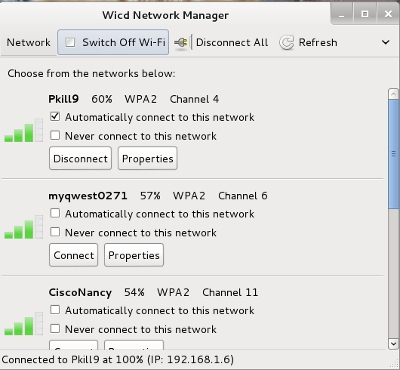
wicd is a very nice replacement for network mangler.


sudo apt-get install wicd

to run:


sudo wicd-client

Enjoy your own DNS goodness.

You may need to adjust some router settings. I am running dd-wrt and so I had to do check use dnsmasq for DNS so that the 127.0.0.1 would show up in /etc/resolv.conf properly.

router changes for dd-wrt

You may need to go into wicd properties for the ethernet card, and add 127.0.0.1 as the first static dns server, then add your isp as dns 2 and 3 (or you can use google's dns servers: 8.8.8.8 and 8.8.8.4:

Wicd Changes

And anything on your LAN would also be able to use this for a DNS server. Just point it to the LAN address of where you installed the software. In my case: 192.168.1.101. You would also need to port forward all incoming dns requests in your router for port 53 to the LAN ip of your dns server.

==========

Here is a test using my Netbook:

I changed /etc/resolv.conf on my Netbook (this is temporary, since network mangler is installed on my Netbook)

nwayno@Nelson:/etc$ cat /etc/resolv.conf
# Generated by NetworkManager
domain ph.cox.net
search ph.cox.net
nameserver 192.168.1.101
nameserver 68.10.16.20
nameserver 68.10.16.29
nameserver 8.8.8.8
nwayno@Nelson:/etc$

I changed the nameserver to point to the dns server we just created.

Now dig:
nwayno@Nelson:/etc$ dig www.hak5.org

; <<>> DiG 9.7.1-P2 <<>> www.hak5.org
;; global options: +cmd
;; Got answer:
;; ->>HEADER<<- opcode: QUERY, status: NOERROR, id: 16789
;; flags: qr rd ra; QUERY: 1, ANSWER: 1, AUTHORITY: 0, ADDITIONAL: 0

;; QUESTION SECTION:
;www.hak5.org. IN A

;; ANSWER SECTION:
www.hak5.org. 129 IN A 50.19.115.126

;; Query time: 2 msec
;; SERVER: 192.168.1.101#53(192.168.1.101)
;; WHEN: Tue May 24 23:30:00 2011
;; MSG SIZE rcvd: 46

nwayno@Nelson:/etc$

Notice that the server address is indeed: 192.168.1.101 -- Our new DNS server.

Thanks Joe and Loni, for your help.

1 comment

2

May

Mounting an iso9660 iso file in Linux (ubuntu/debian)

Posted by Wayno  Published in DVD, Joe, Skill Level: Easy, Skill Level: Medium

In a previous article, I showed how to install the FBReader programme.

I download the April 2010 Dual Layer iso torrent from the Project Gutenberg Site.

I opened the torrent in Bit Tornado (Ubuntu 10.10 comes with this), and downloaded the iso. Took about 6.5 hours on a 3 meg connection. The file is a little over 8 gig.

Once I downloaded the file, I did:


sudo mount -t iso9660 pgdvd042010.iso /mnt -o loop

What does it mean?

the -t tells us the filetype is an iso9660 image (ready to burn to a cd/dvd). It uses the archaic Microsoft 8×3 (i.e. filename.ext) filename format, in all CAPITALS.

The pgdvd042010.iso is the name of the file we downloaded.

/mnt is the mount point.

-o loop tells Linux it is a loopback device. This allows us to mount the iso, so we can access the contents of the iso.


df -h
Filesystem Size Used Avail Use% Mounted on
/dev/sda3 50G 21G 26G 45% /
/dev/loop0 7.8G 7.8G 0 100% /mnt

It makes sense to mount the iso image (sorry Windows users), since not all computers have optical disc (cd/dvd) readers. My netbook does NOT have an optical disc, but I could put iso image file there, and access it. Look MA! No CD/DVD Burning required!

Navigate to /mnt (cd /mnt) and launch index.html in this case.

Project Gutenberg on Wayno's Machine

Thanks Joe and Terry

Wayno

1 comment
Next Page »

Search

About

PKILL-9

Categories

  • Android (1)
  • apt-get (5)
  • Audio (10)
  • backup (3)
  • bash (9)
  • Browsers (8)
  • Compiling Source Code (3)
  • crontab (1)
  • debian (23)
  • debugging (1)
  • Deposit @ Home (1)
  • DNS – Domain Name System (2)
  • DVD (6)
  • filesharing (5)
  • fstab (2)
  • ftp (2)
  • gnome (15)
  • grub (1)
  • howto (23)
  • Humour (5)
  • Internet Connection Sharing (1)
  • java (3)
  • Joe (23)
  • Linux Networking (8)
  • loni (16)
  • Misc. other devices/things (12)
  • Music (9)
  • Natty (3)
  • netbook (4)
  • Printers/Printing (2)
  • rsync (1)
  • samba (2)
  • Security (3)
  • Skill Level: Advanced (16)
  • Skill Level: Easy (85)
  • Skill Level: Medium (39)
  • sound (8)
  • ssh (3)
  • Thunderbird (3)
  • Uncategorized (40)
  • ups (2)
  • video (8)
  • wireless (3)
  • word processors (3)
  • X11 (4)

Archives

  • February 2012 (2)
  • January 2012 (3)
  • December 2011 (2)
  • November 2011 (6)
  • October 2011 (5)
  • September 2011 (2)
  • August 2011 (8)
  • July 2011 (11)
  • June 2011 (8)
  • May 2011 (11)
  • April 2011 (9)
  • March 2011 (9)
  • February 2011 (10)
  • January 2011 (4)
  • December 2010 (3)
  • November 2010 (3)
  • September 2010 (1)
  • July 2010 (7)
  • April 2010 (4)
  • March 2010 (3)
  • February 2010 (5)
  • January 2010 (1)
  • December 2009 (1)
  • October 2009 (4)
  • September 2009 (1)
  • July 2009 (1)
  • June 2009 (2)
  • May 2009 (5)
  • April 2009 (5)
  • March 2009 (3)
  • February 2009 (6)

Blogroll

  • Documentation
  • Plugins
  • Suggest Ideas
  • Support Forum
  • Themes
  • WordPress Blog
  • WordPress Planet

Pages

  • About
  • Contact
  • RSS
  • Email Subscription
  • Facebook Like

Meta

  • Register
  • Log in
  • RSS Entries
  • Comments Rss
February 2012
S M T W T F S
« Jan    
 1234
567891011
12131415161718
19202122232425
26272829  

Recent Posts

  • How to file check a Windows or Dos File System using Linux
  • Getting the subsonic server to work in Linux with a Roku media player
  • test2
  • How to generate an easy to remember password
  • Getting a Webcam/Logictech Quick Cam to work with Skype in Linux
  • How to add a network printer in Debian/Ubuntu Linux
  • Ubuntu 12.04 LTS Won’t Fit On a CD
  • 25 worst passwords — how to change your password in Linux
  • How to label an ms dos Flash Drive or Micro SD card using mtools in Linux
  • Linux Mint: The new Ubuntu?

Recent Comments

  • tmoody in How to install Java 1.7 for Ubuntu/Debian (apt-get…
  • Jake in How to file check a Windows or Dos File System usi…
  • anakabas in Getting a Webcam/Logictech Quick Cam to work with …
  • joeSchmoe in How to install Java 1.7 for Ubuntu/Debian (apt-get…
  • Dynamic Designz – Anonymous P… in Making Ubuntu/Debian Linux do it's own DNS (Domain…
  • jake in Getting a Webcam/Logictech Quick Cam to work with …
  • Wayno in How to avoid bricking a Tracfone. What is the dif…
  • lynncancersurvivor in How to avoid bricking a Tracfone. What is the dif…
  • Jose in 25 worst passwords -- how to change your password …
  • How to label an ms-dos Flash Drive … in How to mount a usb or micro sd card, when Linux do…
© 2007 Wayno's Adventures and sojourns through Linux


Theme by WebRehash | Free WordPress Templates | Valid XHTML | Valid CSS 3.0 | Powered by Wordpress